


Pixlr AI Photo & Video Editor
3.654.25K Reviews
App Specs
- Version
- 3.9.1
- Updated On
- License
- Free
- Downloads
- 100,000,000+
- Developer
- Pixlr Pte Ltd
- Categories
- Photography
- Platform
- Android, iOS
Screenshots
 Analysis by AppCompare
When a photo looks almost right but still feels unfinished, I like having an editor that lets me try a few directions without turning the fix into a project. That is the appeal of Pixlr AI Photo Editor: it brings quick adjustments, creative effects, collage-making and AI-assisted tools together on a phone. I find it most useful when I want to improve a picture for sharing, not build a painstaking, layer-by-layer edit.
There is a practical caveat to that convenience. An editor with many choices can feel less straightforward once you move beyond a crop or filter, and AI results still need a human eye. I would treat it as a flexible creative workspace rather than a button that automatically makes every image look better.
Where a quick edit can get stuck
The first friction often comes after opening a photo: it can be tempting to try several effects before deciding what the picture actually needs. I get better results by starting with the simplest correction, such as framing or overall color, then checking whether an overlay or stronger style helps. If I begin with a dramatic effect, it can hide the original problem instead of fixing it.
AI edits can also produce an outcome that is close but not convincing at the edges. With a busy scene, hair, branches or objects that overlap the subject can make a cutout look less natural. I would inspect those boundaries before using the image in a collage or sharing it as a polished portrait. The time saved on the first pass is valuable, but it does not remove the need to review the result.
Pixlr is a photography app from Pixlr Pte Ltd, and its mix of straightforward adjustments and more expressive tools suits people who want both options in one place. It is free to install, with in-app purchases ranging from $0.99 to $79.99 per item. Its Everyone age rating makes it broadly accessible, though I would still check purchase prompts carefully if a child is using the device.
Getting Started with Pixlr AI
Downloading and setting up Pixlr AI Photo Editor was a breeze. Available on both Android and iOS, it doesn't ask you to jump through hoops to get started. I was up and running in no time, ready to explore its robust range of features. The interface? Clean and intuitive, making it easy for both novices and seasoned editors to navigate.
Features That Shine
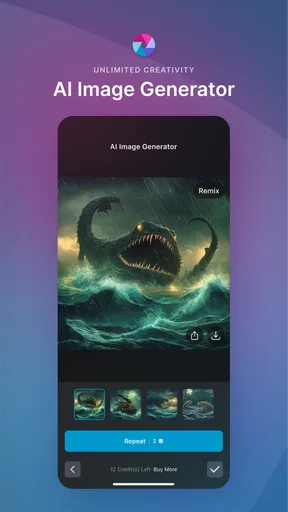
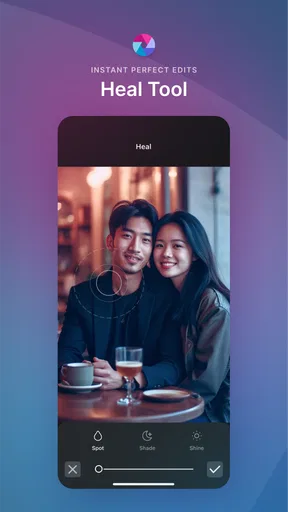
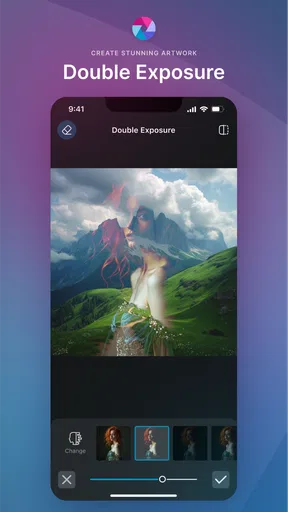
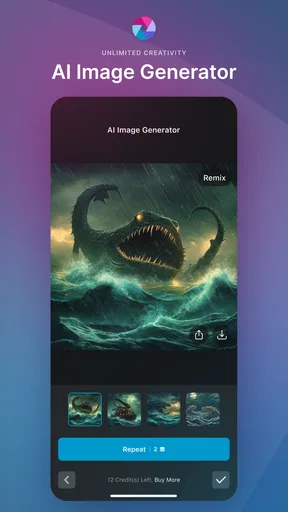
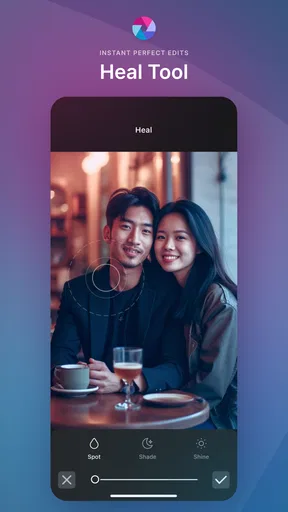
One of the first things I noticed was the sheer variety of tools at my disposal. From basic edits like cropping and rotating to more advanced options like color correction and overlays, Pixlr AI has you covered. But what really blew me away was the AI-enhanced editing. It’s like having a professional photographer whispering tips in your ear.
Worth Reading Before You Choose

Switching to Android Auto Means Rethinking Your Driving Routine

Google Calendar Makes a Crowded Week Easier to Manage

Baby Panda World Brings Quick Play to Modern Phones, but Its Game Library Feels Busy

ESPN’s Live Game View Makes Following Close Games Easier

QuizzLand Review: A Good Fit for Short Trivia Breaks, Not Every Player

Basketball Stars: Multiplayer Is Fast, but Can It Recover When Matches Go Wrong?
The AI tools are particularly impressive. The automatic background removal feature is a game-changer. I used it on a picture I took at a crowded park, and within seconds, the app had isolated my subject beautifully, allowing me to place them in any setting I imagined.
Creative Tools for Every Mood
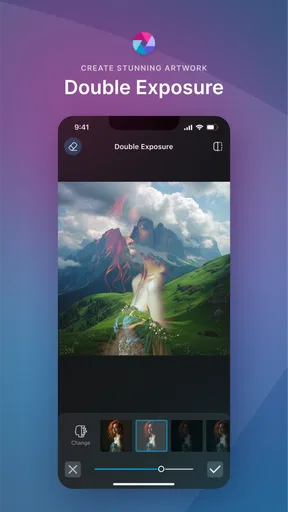
Feeling artsy? Pixlr AI has a range of filters and effects to play with. I spent a good chunk of my time trying out different moods, from vintage sepia tones to vibrant, punchy colors that made my photos pop. The app also offers a variety of overlays and borders to give your photos that extra flair.
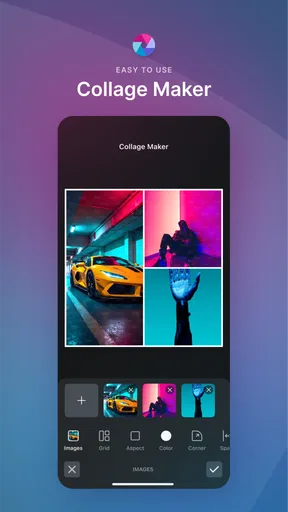
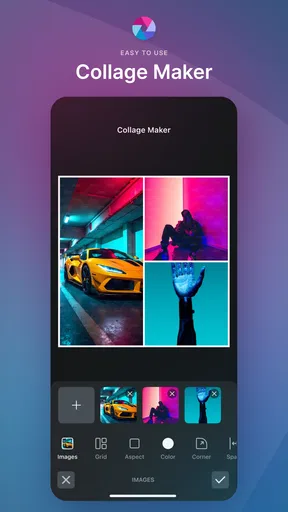
And let’s talk about the collage maker. It’s perfect for when you have too many good shots to pick just one. The customizable templates are a nice touch, letting you arrange your photos in a way that tells a story.
Choosing the right workflow for a real day out
For a realistic everyday example, imagine taking several pictures during a family visit, then wanting to share one clear highlight and a small recap. I would pick the sharpest image first, crop away distractions, and make only modest color changes. Then I would try a collage for the extra moments. That order matters: choosing the layout before settling on the individual pictures can leave you squeezing in shots that do not add anything.
For a product listing or a simple profile image, background removal can be more useful than a dramatic filter. I would use a clean, contrasting replacement only if it suits the subject, then zoom in mentally—or on screen—around the outline. A cutout that looks fine as a small thumbnail may show rough edges when enlarged. Keeping the original image untouched until I am satisfied is a sensible habit with any editor, especially when an AI tool changes a substantial part of the composition.
Setup checks and sensible expectations
The app’s current version is 3.8.2, and it requires Android 9 or later. Before troubleshooting an installation or an unavailable tool, I would check that the device meets that minimum and that the app is up to date through the relevant app store. Those simple checks are more useful than repeatedly tapping a control that may not be responding as expected.
It is also worth thinking about the source image. A small, blurry photo gives an editor less detail to work with, so sharpening or effects cannot reliably restore information that was never captured. For a clean edit, I start with the best original available, avoid repeated heavy changes, and compare the result with the unedited version before saving. This is a small step, but it helps prevent an enthusiastic filter pass from making skin tones or skies look unnatural.
User Experience and Performance
Performance-wise, Pixlr AI runs smoothly. I didn’t experience any lags or crashes, even when editing high-resolution images. The app is responsive, making it a pleasure to use without the frustration of waiting for it to catch up.
One of the standout aspects is how user-friendly it is. The learning curve is pretty gentle, thanks to tooltips and guides that help you understand what each feature does. Even if you’re new to photo editing, you’ll find yourself creating stunning images in no time.
Workflow recovery when an edit goes wrong
If a result looks worse than the original, I would step back rather than stack on more effects. Undoing the most recent change, returning to a simpler crop or color adjustment, and trying one tool at a time makes it easier to see what caused the problem. For a background cutout, I would reconsider the source photo or choose a less distracting composition instead of expecting a complicated edge to become perfect through repeated attempts.
If the app appears to stall, I would first make sure the photo itself is available on the device and that the phone has enough room to complete ordinary tasks. Closing and reopening the app can be a reasonable basic check; if the issue persists, restarting the device and checking for an app update are sensible next steps. I would avoid deleting an unfinished project or clearing app data without first considering whether that could remove work I want to keep.
When another editor is a better fit
Pixlr sits in a useful middle ground between a phone’s built-in editor and more specialized editing software. The built-in tool is often faster for a tiny exposure or crop adjustment, while Pixlr makes more sense when I want a collage, layered visual treatment or an AI-assisted change without moving to a desktop workflow. Compared with a dedicated professional editor, its attraction is approachability; the trade-off is that someone seeking precise, repeatable control over every detail may prefer a more specialized tool.
I would also skip it if my main need is to preserve a strict documentary look. Filters and generated or altered backgrounds can change the character of a photo, so they are not ideal when faithful representation matters more than style. Likewise, if I only edit one picture occasionally and never use creative effects, the phone’s native editor may be enough and require less setup.
When the app may not be the cause
Not every disappointing result points to a software problem. Poor lighting, motion blur, a subject that blends into the background, or a compressed copy can all limit what an edit can achieve. If a portrait cutout looks uneven, I would compare it with a photo taken against a simpler background before deciding the tool itself is at fault. For consistent results, capturing a clearer original is often more effective than adding another effect afterward.
Sharing can involve a separate step too: the finished image may be ready in the editor, while the destination app or the phone’s connection is what slows down posting. I would check whether the image is saved where I expect and then try the share action again, rather than re-editing the picture. That distinction helps avoid losing a good result while chasing a problem that is outside the editing process.
Sharing Your Creations
Once you’ve crafted your masterpiece, sharing it is seamless. Pixlr AI integrates with various social media platforms, so whether you’re posting to Instagram, Facebook, or just sending a pic to a friend, it’s just a click away. It’s nice not to have to jump through multiple apps to get your photo where it needs to be.
Who will get the most from it?
For someone who regularly makes social posts, invitations, quick portraits or small collages, the combination of everyday adjustments and creative options is genuinely handy. I can see it working especially well for a casual seller who wants a clearer product image, or a parent assembling several snapshots into one shareable memory. It is less compelling for a photographer whose routine depends on detailed, consistent color work across many images, or for anyone who wants editing to remain completely automatic.
There is also a practical purchase question: the app is free, but optional in-app items have a wide price range. I would explore the free workflow first and only consider a purchase if I know which tool or convenience I need. That avoids paying for a feature simply because it appears during an experiment. Pixlr has an average rating of 4.1 from around 1.2 million ratings, with about 55,000 written reviews and over 100 million installs, making it a widely used option without guaranteeing that every tool will suit every editing style.
Final Thoughts
Overall, Pixlr AI Photo Editor is a solid choice for anyone looking to enhance their photos without the hassle of complex software. Its combination of AI-driven tools and creative options make it a standout in the mobile editing space. Whether you’re a casual snapper or an aspiring photographer, this app has something to offer.
So, if you’re ready to take your photos from "meh" to "wow," give Pixlr AI a try. You might just find yourself falling in love with photography all over again.
My practical verdict
I would recommend Pixlr when I want one approachable place to make a photo more shareable, try a new visual style, or assemble a handful of images without learning a demanding desktop editor. The strongest results come from choosing a clear goal, using the AI features selectively, and checking the finished image at the size people will actually see it.
Its main limitation is not that it lacks things to try, but that choice can encourage over-editing, while complex source images can make automated changes less convincing. If that sounds manageable, the free starting point makes it easy to judge the workflow for yourself. If you need exact control or only want a basic crop, another option may fit better. For casual creative editing, though, I find the balance of speed and room to experiment appealing.
Pros
- User-friendly interface for quick edits.
- Extensive range of filters and effects.
- AI tools enhance photos effortlessly.
- Supports multiple image formats.
- Regular updates add new features.
Cons
- Contains ads in the free version.
- Some features require a premium subscription.
- Can be resource-heavy on older devices.
- Occasional crashes on large files.
- Limited offline functionality.
FAQs for Pixlr AI Photo & Video Editor
What features does Pixlr AI Photo Editor offer for photo editing?
Pixlr AI Photo Editor provides a comprehensive suite of tools for enhancing your photos. Key features include AI-powered enhancements, a variety of filters and effects, layer support, advanced color grading, and retouching tools. Additionally, it offers a user-friendly interface with easy-to-use sliders and adjustment options for beginners and professionals alike.
Is Pixlr AI Photo Editor free to use, or does it require a subscription?
Pixlr AI Photo Editor offers a free version with basic tools and features. However, for more advanced capabilities, you can opt for a subscription model which unlocks additional features such as premium filters, ad-free experience, and enhanced editing tools. Pricing is competitive, making it accessible for serious hobbyists and professionals.
How does Pixlr AI Photo Editor compare to other photo editing apps?
Pixlr AI Photo Editor stands out due to its robust AI enhancements and ease of use. Compared to other apps, it offers a balanced mix of advanced features and accessibility. While apps like Adobe Lightroom offer more professional-grade tools, Pixlr provides a more user-friendly approach with AI features that streamline the editing process.
Does Pixlr AI Photo Editor support all image formats?
Pixlr AI Photo Editor supports a wide range of image formats, including JPEG, PNG, and TIFF, which are commonly used for digital photography. However, it may not support proprietary formats used by some professional cameras, so it's advisable to convert such files into a compatible format before editing them in Pixlr.
Can Pixlr AI Photo Editor be used offline, or does it require an internet connection?
Pixlr AI Photo Editor is primarily designed for online use, taking advantage of cloud-based features for AI processing. While some basic editing functionalities may be accessible offline, to fully utilize its capabilities, including saving and sharing your work, an internet connection is recommended. This allows for regular updates and access to new features as they are released.


